

Overview
Connect Slack from the Asymptote dashboard to send alert notifications to a Slack channel. You can choose either a public channel or a private channel that has the Asymptote Slack app added to it.Connect Slack
- Log in to the Asymptote dashboard.
- Go to Connectors.
- Find the Slack integration.
- Click Connect.
- In Slack, select the workspace where Asymptote should send alert notifications.
- Review the permissions requested by the Asymptote app.
- Click Allow.
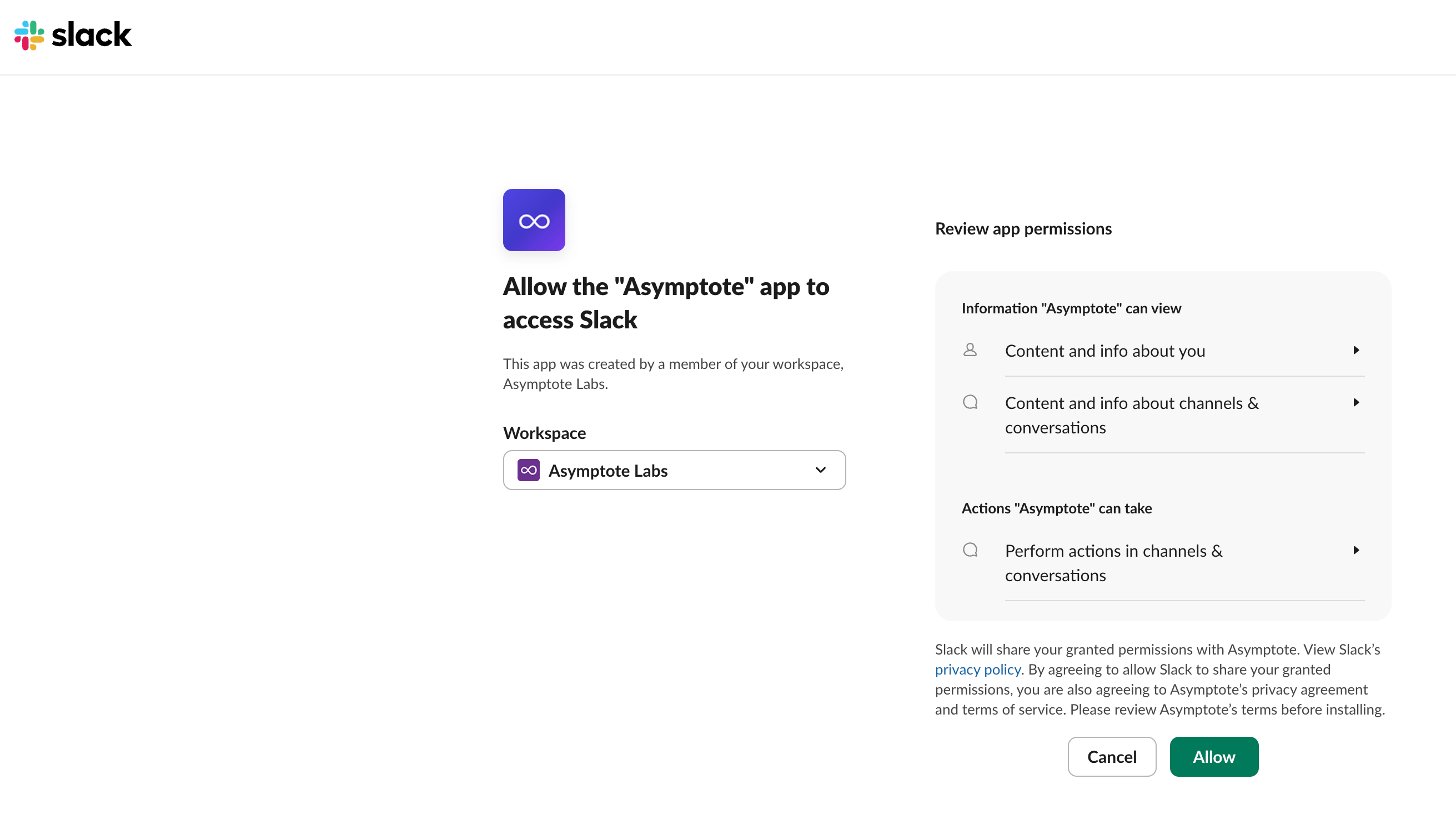
Authorize the Asymptote Slack app from Slack's connection screen.
Choose a Notification Channel
- Open the Slack connector in Asymptote.
- Search for the channel by name or channel ID.
- Select the Slack channel from the dropdown.
- Click Save channel.
- Click Send test notification to confirm Asymptote can post to the channel.
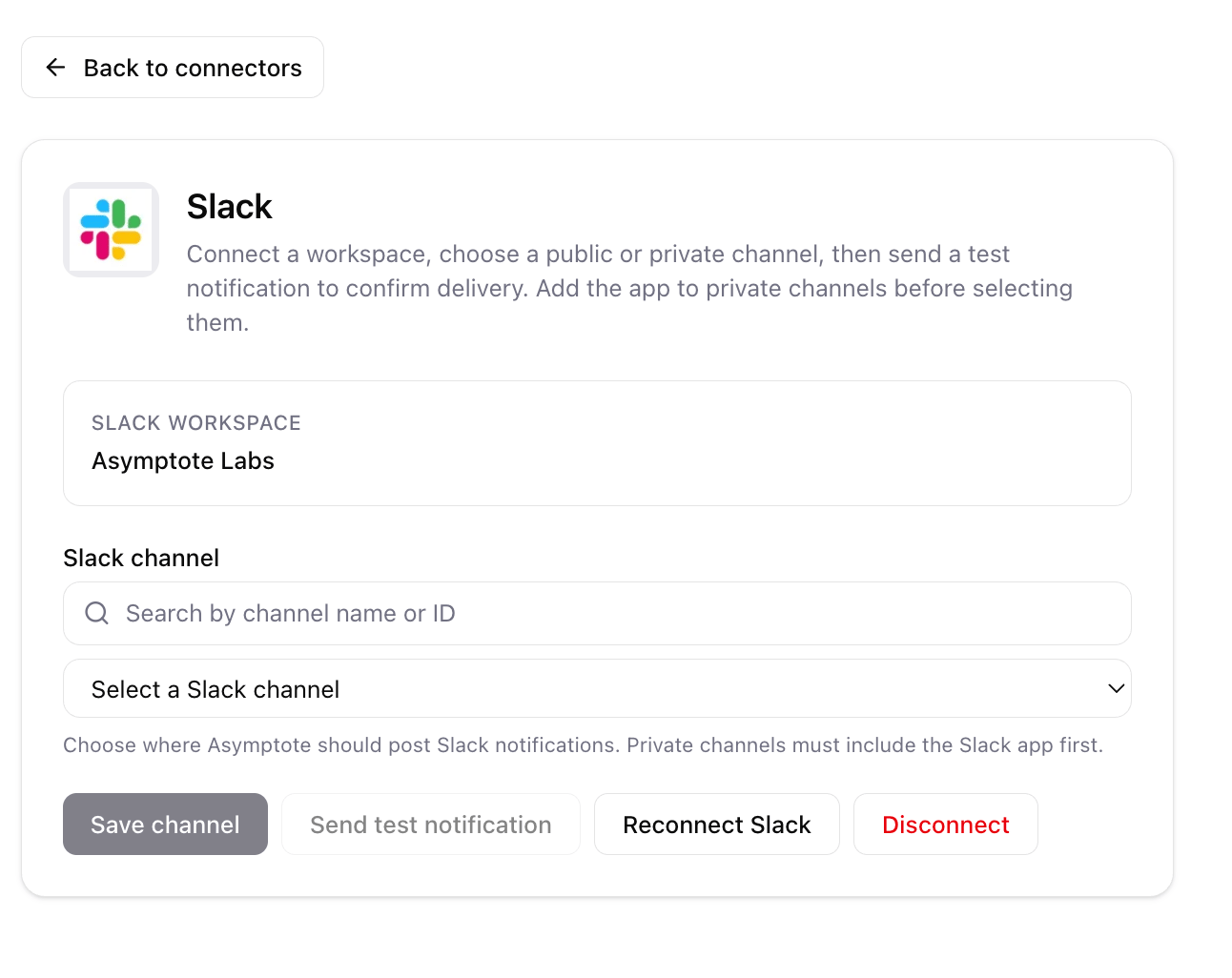
Select the Slack channel that should receive Asymptote alert notifications.
Add Private Channels
Slack only allows apps to post in private channels after the app has been added to that channel.- Open the private Slack channel.
- Click the channel name to open channel details.
- Go to Integrations.
- Click Add apps.
- Search for Asymptote.
- Add the Asymptote app to the channel.
- Return to the Slack connector in Asymptote.
- Search for the private channel by name or channel ID.
- Select it, then click Save channel.
- Click Send test notification to confirm delivery.
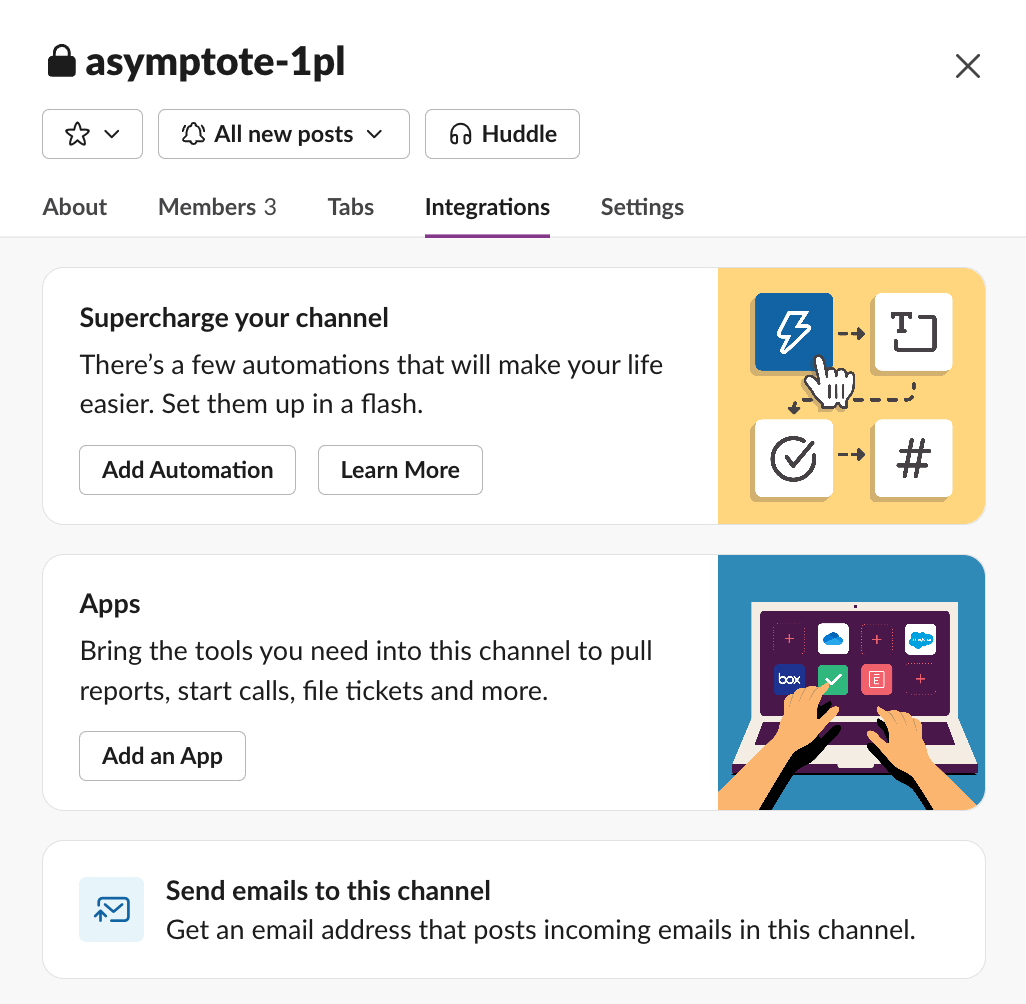
Add the Asymptote app to a private Slack channel before selecting it in the connector.