
Integration Overview
Use this integration to capture Cursor cloud-agent activity and upload each session log to your own Google Cloud Storage bucket. It is meant for testing cloud-agent telemetry without running a hosted Asymptote backend. This flow depends on the Beacon CLI. You runbeacon cloud commands from your
workstation to create the GCS upload path, generate project hooks to commit to
your repository, and generate the setup script that installs Beacon binaries in
the Cursor cloud sandbox.
If you’re interested in leveraging this telemetry ingest across your
enterprise, Asymptote Managed is designed for
production cloud-agent telemetry ingest at scale.
Overview
Cursor Cloud Agents run in Cursor’s cloud environment, so Beacon cannot use the long-running endpoint agent that local installs use. Instead, commit project-level Cursor hooks to.cursor/hooks.json and use the setup script to
install Beacon binaries in the sandbox. During a cloud-agent session, those
hooks write /tmp/beacon/runtime.jsonl; Beacon refreshes the corresponding GCS
object as supported Cursor hook events run.
The setup has four parts:
- Create a dedicated GCS bucket and uploader service account with Beacon.
- Add Beacon cloud telemetry environment variables to the Cursor cloud environment.
- Commit Beacon’s project-level Cursor hooks to
.cursor/hooks.json. - Run a Beacon-generated setup script inside the Cursor cloud environment to
install
/tmp/beacon/bin/beaconand/tmp/beacon/bin/beacon-hooks.
conversation_id hook field as the default run_id for
Cursor Cloud telemetry. If you set BEACON_RUN_ID yourself, Beacon preserves
that value instead.
Prerequisites
- Beacon CLI
v0.0.56or later. gcloudinstalled and authenticated to the Google Cloud project you will use for telemetry storage.- A Google Cloud project where you can create buckets, service accounts, IAM bindings, and service account keys.
- Cursor Cloud Agent access for the repository you want to test.
- A Cursor cloud environment with outbound access to:
oauth2.googleapis.comstorage.googleapis.comgithub.com*.githubusercontent.com
gcloud and select your project:
1. Create the GCS Upload Path
From your workstation, choose a bucket and prefix: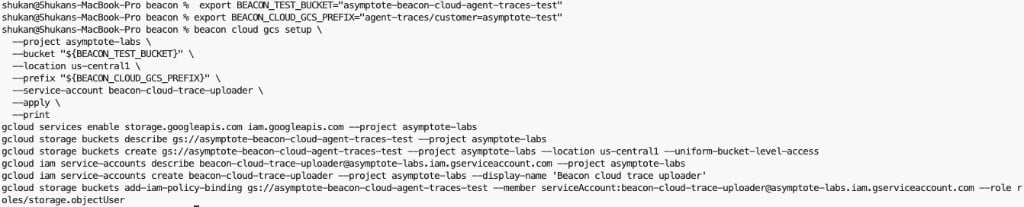
Review the bucket, service account, and IAM commands before applying them.
BEACON_CLOUD_GCS_CREDENTIALS_B64 anywhere you
share screenshots or logs.
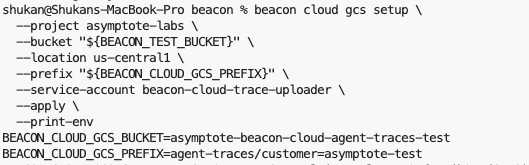
Copy the printed BEACON_CLOUD_GCS_* variables into the Cursor cloud environment.
2. Configure Cursor Cloud Agents
Open your Cursor Cloud Agent environment for the repository. Add these environment variables: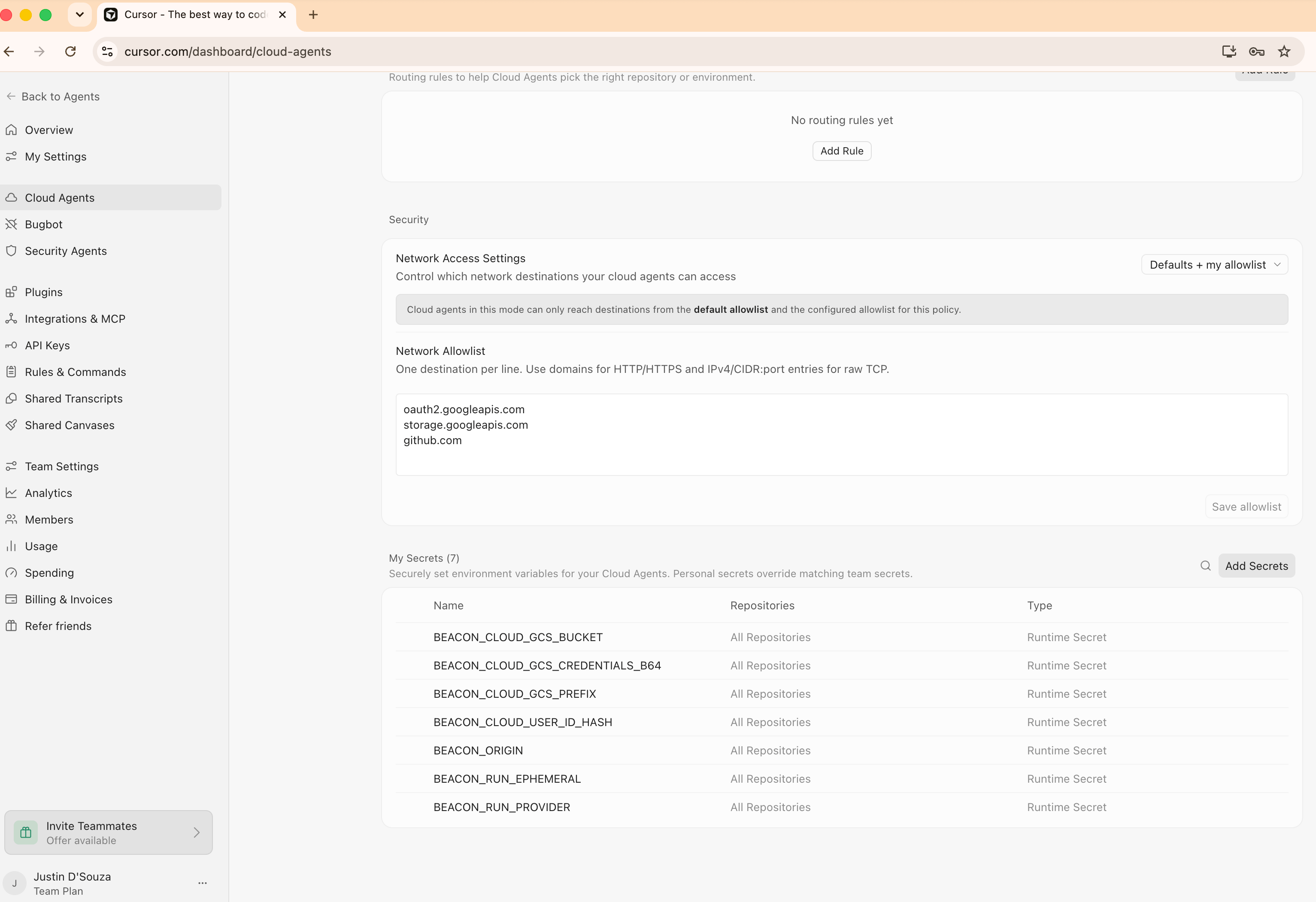
Configure network access and Beacon runtime secrets for Cursor Cloud Agents.
3. Commit Cursor Project Hooks
Cursor Cloud Agents load project hooks from.cursor/hooks.json at repository
checkout and task start. Generate the hook file locally, commit it, and push it
before starting cloud agents:
4. Add the Setup Script
Generate the setup script for your Beacon release:- installs
beaconandbeacon-hooksin/tmp/beacon/bin, - does not modify
.cursor/hooks.json, - expects project hooks to already be committed in the repository.
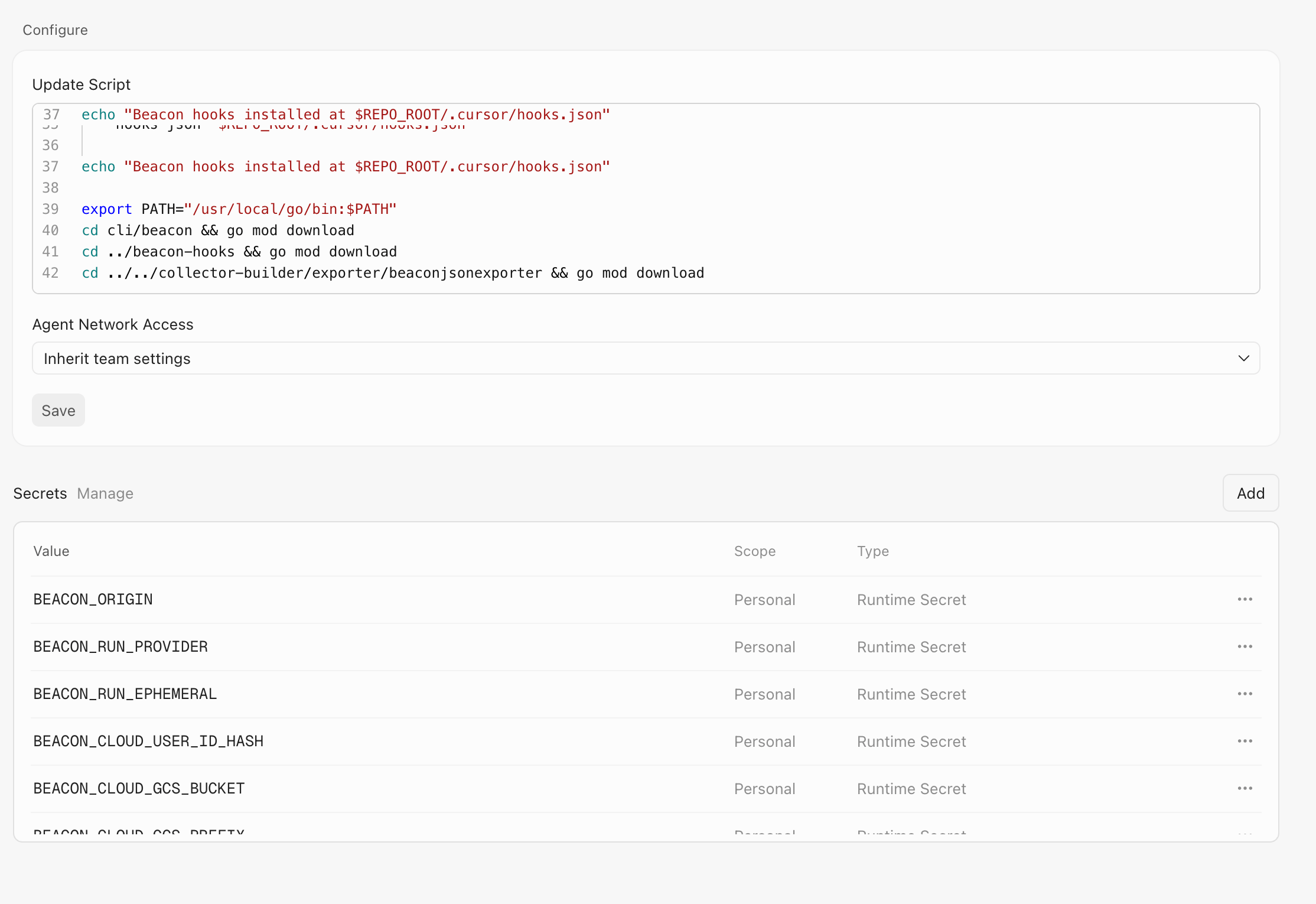
Paste the generated Beacon setup script into the Cursor cloud environment update script.
5. Run a Cloud Agent Task
Start a Cursor cloud agent task that uses tools. For example:Cursor Cloud Agents do not run
beforeSubmitPrompt, sessionStart,
sessionEnd, or stop hooks. Prompt text and final session lifecycle hooks
are therefore not available through this self-serve hook path; Beacon records
the supported in-sandbox events Cursor exposes after the cloud VM starts. See
Cursor’s Cloud Agent hook support matrix
for the current platform support list.6. Verify GCS Upload
List the uploaded session objects: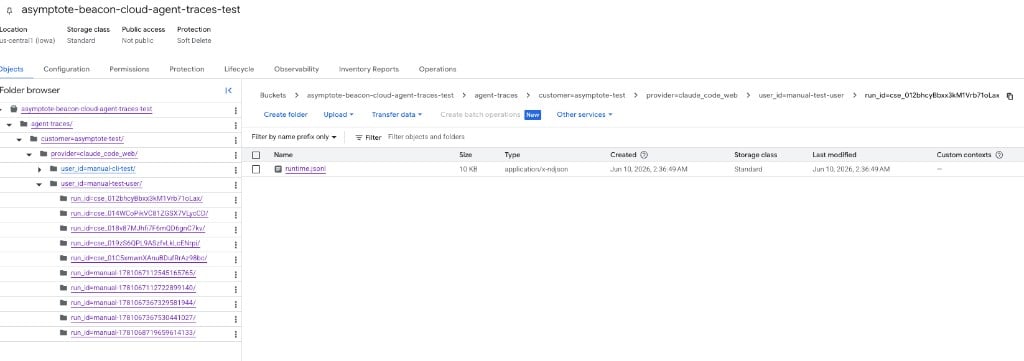
Beacon uploads one readable runtime.jsonl object per Cursor cloud agent session.
Security Note
The self-serve GCS flow above creates a dedicated service account scoped to object uploads for one bucket, then stores its credentials in the Cursor cloud environment. This is useful for proof-of-concept testing, but treat that environment variable as a sensitive credential. Avoid broad credentials and review access before using this flow with sensitive telemetry.Troubleshooting
The bucket is empty
Confirm the Cursor setup script ran and installed binaries, and confirm the repository checkout includes committed project hooks:runtime.jsonl exists but GCS is empty, check network access and GCS
credentials. The cloud sandbox must reach both oauth2.googleapis.com and
storage.googleapis.com.
If runtime.jsonl does not exist, confirm the task used a Cursor Cloud
supported hook surface such as a file read, shell command, file edit, tool use,
subagent event, or compaction event. Prompt-only tasks do not emit
beforeSubmitPrompt in Cursor Cloud because the prompt is submitted before the
cloud VM exists. Cursor documents the supported and unsupported cloud hooks in
its Cloud Agent hook support matrix.
Cursor tries to commit hook settings
The setup script should not modify.cursor/hooks.json. If a cloud agent shows
changes to .cursor/hooks.json, update the setup script to v0.0.56 or later
and remove older commands that ran beacon cloud cursor install-hooks inside
the VM.
Related
Cursor runtime support
Review local Cursor telemetry through Beacon-managed hooks.
Google Cloud Storage forwarding
Review local endpoint GCS forwarding for persistent endpoint deployments.
Asymptote Managed
Use managed secure ingest for production enterprise cloud-agent telemetry.
Agent Beacon on GitHub
Request new cloud-agent destinations or contribute support.